Restore an old family photo in the Gemini app - free, with one prompt
Clean up a scratched, faded old photo with one prompt in the Gemini app - the free tier works. The exact prompt, a real before-and-after test, and the checks to make first.
Takeaway: The Gemini app can clean up a scratched, faded old photo with a single prompt, and image editing works on the free tier - no paid plan needed. We actually tested it. Below is the exact prompt, the real before-and-after, and the checks to make before you save or share.
That fading photo of your grandparents' wedding or a childhood group shot can now be cleaned up with a scan or a clear phone photo of the print - no editing software to learn.
The three steps
- Open the Gemini app (free tier works - Google's official feature list includes image generation and editing without a Google AI plan).
- Tap the + button next to the prompt box and upload the photo. A scan or a clear, straight-on phone photo of the print both work.
- Paste this prompt, exactly:
That last line matters. It tells Gemini to protect faces, which is the part you care about most.
Our test, honestly reported
We tried this on a synthetic sample photo that we created and artificially aged - scratches, stains, fold marks, fading - then restored it in the Gemini app on a free account. Here is the actual result:
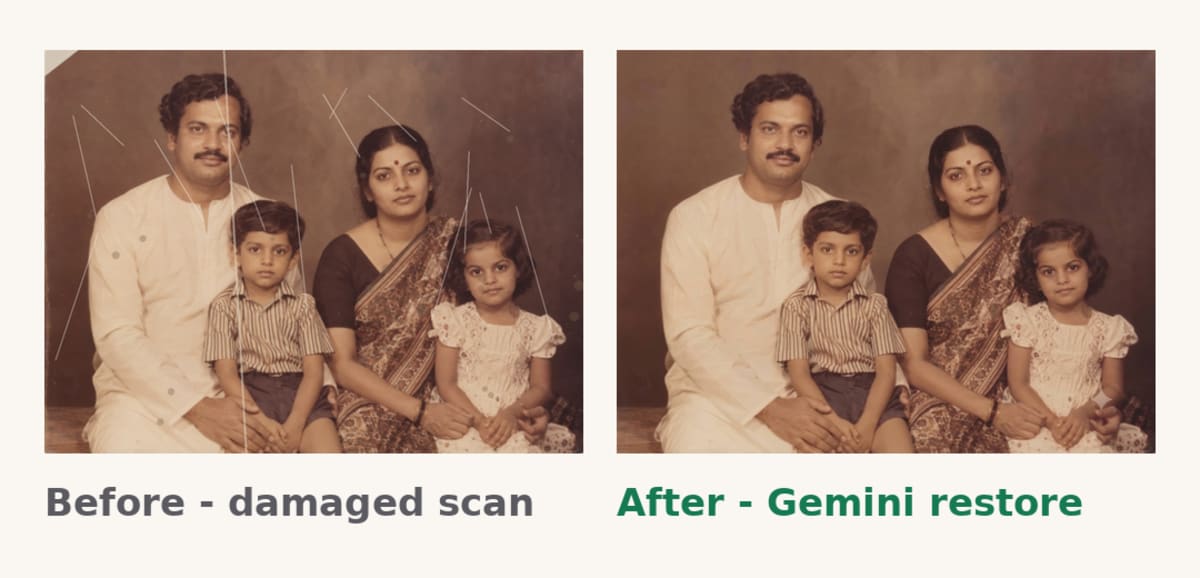
Our actual test: a synthetic sample photo we artificially aged (left), and what Gemini returned after one prompt (right).
The result: the scratches and stains were visibly reduced, the faces looked clearer, and the warm original colours stayed. A few light traces of damage remained, so "restored" means "much better", not "factory new". Your results on a real photo will vary with the scan quality and the damage.
Before you upload a real family photo
- Ask first. A family photo shows real people. Get the family's consent before uploading it anywhere, and remember the photo goes to Google's servers for processing.
- AI can invent detail. Restoration can fill in facial detail that looks plausible but was never in the original - it is a reconstruction, not a recovery of the true past. That is why the next check matters.
Two things to know before you save
- Compare every face with the original. If a face changed, reply with "keep faces unchanged, try again" and compare again. Your eye is the final check.
- There is a small sparkle mark. Gemini adds a visible watermark so people know an image is AI edited. Per Google's official help page, in India this visible watermark is applied automatically to all visual media you create; only AI Ultra subscribers in India see a setting to manage it. Separately, all AI-generated or edited media from Gemini includes an invisible SynthID watermark. So share your restored photo freely, but expect the mark to stay.
Try it tonight
Pick one photo. Upload, one prompt, save - and compare faces before you share.
Sources (official, checked 4 November 2026): - Gemini Apps Help, feature availability: https://support.google.com/gemini/answer/16275805 - Gemini Apps Help, "Manage watermark settings in Gemini Apps": https://support.google.com/gemini/answer/17405358
Join the Nudge Daily community at nudgedaily.in for one practical AI nudge every day.
Get breakdowns like this on WhatsApp every morning
Join the Nudge Daily AI community on WhatsApp for free. Zero noise, high-signal curation.
Join Free Community